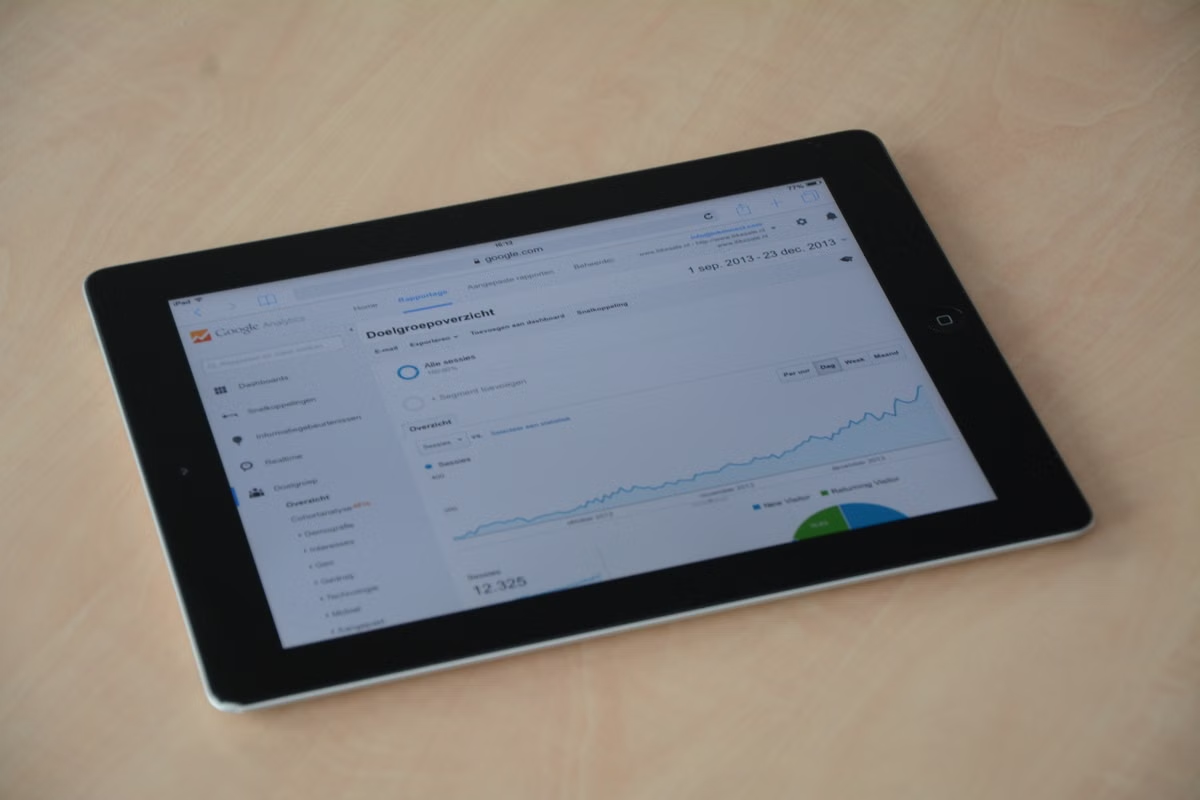
A unit count, sales figure, and payment amount appear to disagree across App Store Connect.
Fastest check: Match the app, date range, territory, and metric first. Then identify whether each figure comes from App Analytics, Sales and Trends, or a financial report. Estimates, sales activity, proceeds, and final payments are not interchangeable.
This guide is for cross-border app operators reconciling figures across App Store Connect reports.
It also helps overseas business leads reviewing territory performance.
Finance and analytics teams can use it to separate sales records, proceeds, and payment information.
How to diagnose App Store Connect sales data differences
A mismatch is not automatically an error. App Store Connect offers reporting tools for different questions, and their data can differ in scope, definitions, or timing. Apple explicitly describes differences between its reporting tools; compare like with like before treating a gap as a reporting problem. Apple’s guide to differences between reporting tools is the reference point for understanding those distinctions.
Start by asking what each figure is meant to represent:
- App Analytics: How are customers discovering, downloading, using, and engaging with the app?
- Sales and Trends: What sales and unit activity does the sales reporting view show?
- Financial reports: What reported financial information supports proceeds and payment reconciliation?
These labels describe different reporting purposes. A number from one view should not be substituted for a number from another just because both appear related to downloads or revenue.
Why might App Store Connect sales figures differ from a financial report? The reports can refer to different stages or definitions. Sales activity, proceeds, and payment information answer different questions. Confirm the report’s field definition and reporting period before deciding the figures conflict.
Apple’s overview of App Store Connect reporting tools explains which tools are intended for different kinds of performance review. Use that overview to select the report that fits the question, not simply the one with the most familiar label.
Comparison by reporting purpose
Use these qualitative fit ratings as a routing aid. They are not Apple-defined scores.
- App Analytics — Strong fit for product and discovery analysis. Use it to examine app performance metrics and dimensions such as territory where available. It is not a substitute for a financial statement or payment record. Check Apple’s App Analytics metric definitions before interpreting a named metric.
- Sales and Trends — Strong fit for sales and unit trends. Use it to investigate sales-related activity and available downloadable sales reports. Its figures do not, by themselves, establish the amount ultimately paid to a developer. Apple documents the availability and estimated basis of Sales and Trends reports.
- Financial reports — Strong fit for financial reconciliation. Use the applicable financial report and its definitions when checking proceeds or payment-related information. For payment status and proceeds information, follow Apple’s guidance on viewing payments and proceeds.
How do App Analytics and Sales and Trends differ? App Analytics is designed to help assess app performance through analytics metrics and dimensions. Sales and Trends focuses on sales and unit trend information. They may inform the same business review, but they do not answer the same question or guarantee matching totals.
First, align the comparison conditions
A mismatch can be created before anyone interprets a metric. Two people may be looking at different apps, periods, territories, or filters while believing they are comparing the same result. Record the selected conditions before exporting or copying a figure.
Check these comparison points:
- App or app record: Confirm the same app is selected in every view. Do not assume that a report opened from a different account or app context has inherited the selection.
- Date range: Match the start and end dates. Check whether one view is showing a selected interval while another is using a different period or report grouping.
- Territory: Confirm whether each figure is for a particular country or region, or for a broader total. A territory total cannot be compared directly with a filtered subset.
- Metric name: Record the exact label shown in the report. “Units,” “sales,” “proceeds,” and analytics measures should not be treated as synonyms.
- Filters and dimensions: Check every applied filter, including territory and any other dimension used to narrow the view. Apple’s documentation on Analytics filters and dimensions explains how these choices affect what is displayed.
- Report source: Note whether the value came from an on-screen view, a downloaded report, or a financial report. An export is not automatically equivalent to a screenshot with different filters.
How can you view App Store Connect sales data by country or region? Select the relevant territory dimension or filter in the reporting view that supports it, then record the selected territory with the metric and date range. Avoid comparing a territory-filtered result with an unfiltered total. The available dimensions depend on the report and its definitions, so verify them in Apple’s filter and dimension reference.
Keep the report name and filters with every figure you share. A screenshot of a number without its selected period, territory, and metric is weak evidence for a reconciliation.
Second, distinguish activity, proceeds, and payment
A label that sounds financial does not reveal the full meaning of a field. Sales records, proceeds information, and payment details may describe different points in the reporting and settlement process. Do not infer the final amount received from a sales figure alone.
When a sales value and a proceeds value differ, check the field definitions in the specific report first. Confirm that the reporting period and territory match, then establish whether the comparison is between sales activity and proceeds or between reported proceeds and a payment record. Apple’s explanations of reporting-tool differences and payments and proceeds should guide that interpretation.
Is Sales and Trends the final settlement record? No. Treat it as a sales and unit trends reporting tool, not proof of the final payment amount. When the question is whether a payment was made or what proceeds are reported, consult the applicable financial report and Apple’s payment information rather than substituting a Sales and Trends figure.
This distinction matters for management decisions. A trend view can help identify changes in sales activity. It cannot by itself confirm a bank receipt, explain every financial adjustment, or establish why a particular payment amount differs. If the official report definitions do not explain a specific gap, preserve the evidence and ask Apple Support rather than inventing a cause.
Third, choose a review path based on the mismatch
Use the symptom to decide what to inspect next. Do not jump from a visible difference to a conclusion about a platform error.
- Territory total differs from a regional figure: Check whether both reports use the same territory selection and whether one is an overall total. In Analytics, inspect the relevant dimensions and filters. In the sales view, confirm the territory represented by the report.
- Sales differs from proceeds: Verify the field definitions and reporting periods in both sources. Then use the relevant financial report for proceeds-related reconciliation. Do not rename a sales value as earnings or cash received.
- Analytics and a downloaded sales report differ: Check whether the reports measure the same event or metric. Confirm the date range, app selection, territory, and filters. Apple’s reporting-tool comparison explains why different tools may not produce identical figures.
- A payment does not match a sales record: Stop comparing the payment directly with the sales record as if they were the same field. Review the financial report and payment information, then record the period and labels involved. Use Apple’s payment guidance to identify the correct information to inspect.
- The selected conditions appear identical but the gap remains: Save the original exports and record the exact query conditions. If Apple’s public definitions do not explain the difference, contact Apple Support with the report names and files. The evidence supports a question; it does not justify assuming a system fault.
A repeatable reconciliation workflow
Follow this sequence before reporting a mismatch to colleagues or making a business decision.
- [ ] Confirm the app. Record the app name or identifier as displayed in the selected reporting context.
- [ ] Set one date range. Write down the exact start and end dates used in each report. Do not rely on memory or a cropped screenshot.
- [ ] Match the territory scope. Record the selected country or region, or explicitly note that the report is unfiltered.
- [ ] Copy the metric label. Use the field name shown in App Analytics, Sales and Trends, or the financial report. Do not normalize distinct labels into one generic “revenue” column.
- [ ] Identify the report type. Mark whether the source is analytics, a sales trend view, a downloaded sales report, or a financial report.
- [ ] Compare the definitions. Use Apple’s metric and reporting documentation to establish what each field represents before comparing values.
- [ ] Retain the original export. Keep the source file and its export context. A manually copied number is harder to verify later.
- [ ] Escalate only with evidence. If the documented definitions do not resolve the gap, provide Apple Support with the report names, filters, period, territory, and original exports.
A reusable record can be kept as a short text entry or spreadsheet row. Include:
- Query date
- App
- Start and end dates
- Territory or territory scope
- Exact metric label
- Report name
- View or export source
- Applied filters and dimensions
- File name or other reference to the retained original
- Unresolved question, if any
This record prevents a later reviewer from confusing a changed filter with a changed result. It also makes the comparison reproducible without relying on a screenshot or handwritten total.
For a team workflow, keep the source report and the interpretation separate. The source field should preserve Apple’s label. A separate notes field can explain what the team believes the figure answers, with a link to the relevant Apple definition. That makes it possible to revise an interpretation without altering the original record.
When the review still does not explain the gap
A documented mismatch is not automatically evidence of a defect. Apple’s public definitions may not answer every account-specific question. Keep the original conditions, note what was compared, and contact Apple Support when the official guidance leaves the cause unresolved.
Before escalating, make sure the request is precise. State which reports were compared, whether the app and period match, which territory and metric were selected, and whether the difference appears in the on-screen view or downloaded file. Avoid sending only a conclusion such as “sales are wrong.” A concise evidence package gives support a clearer question to investigate.
For browser-based verification of a regional storefront or an issue that depends on the macOS browsing environment, first review the remote Mac access guidance and the available OrbVPS Mac environment. A Mac environment can help reproduce a browser or storefront view; it does not change Apple’s reporting definitions or reconcile financial records.
If the current process relies on manually copying totals, comparing screenshots without filters, or using one report as a proxy for another, it has three practical weaknesses: conditions are easy to lose, interpretations are difficult to reproduce, and the wrong figure can reach a business review. The first remedy is a recorded comparison workflow, not a hardware purchase. If a temporary, remote macOS environment is also needed to check how a target-region storefront appears in a macOS browser, renting a Mac from OrbVPS can be more suitable than buying a machine for occasional verification. Teams with continuous heavy workloads or a requirement for direct physical connections should assess a dedicated local setup instead.
Return to the checklist whenever figures appear inconsistent. Match the conditions, identify the report’s purpose, and use the financial report for settlement questions. That keeps App Store Connect sales data differences from becoming unsupported assumptions about performance or payment.
Further reading
Keep Your App Release Workflow on a Dedicated Mac
Run your Xcode builds on an OrbVPS dedicated Apple Silicon physical node.